Auto Checkout is the functionality that completes the checkout part of the order for you. It will display an animated rocket on top of the checkout screen for a few seconds.
This toast notifications shows when auto checkout is enabled after you place rocket order, or regular order (green price buttom inside details screen):
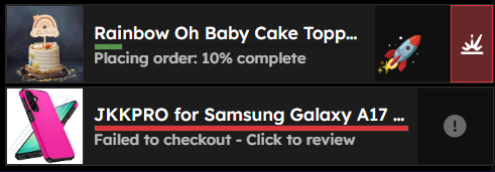
- Clicking on the explosion icon will cancel the auto-checkout and let you finish it yourself. It is useful if you want to change the address for this order only or if you want another shipping speed.
If you click on the toast notification, it will open the checkout for you so you can watch or override the process:
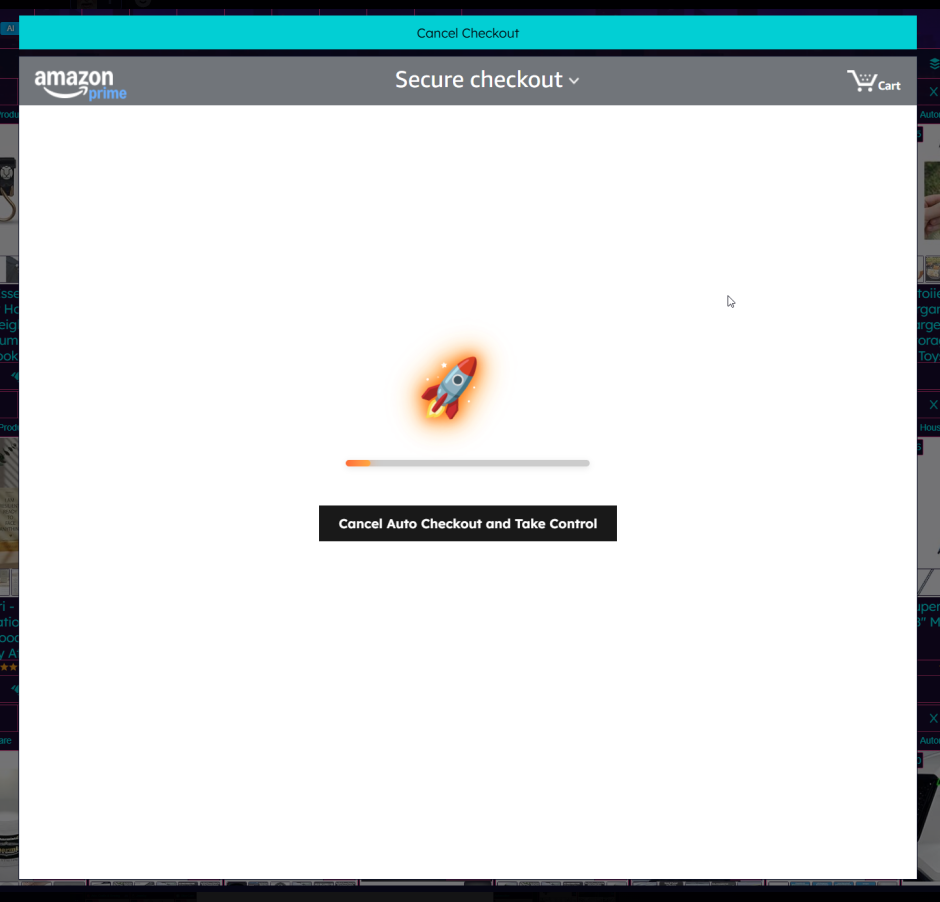
- When using the red checkout cart buttom inside the product details it automatically disables the auto checkout for this order.
¶ Settings
On behavior settings you can enable/disable Auto Checkout in the "Checkout" section.
¶ Common issues
Below you can find solutions for some of the common issues that users can have during Auto Checkout
¶ How does it work
-
Vine uses the amazon "Buy Now" functionality. In case UV is not being able to finish your checkout with a "Single Click". It will fail. To test if your "Buy Now" is a "Single Click". Go to amazon website and try to buy any product with "Buy Now" button. If the page that you see next has a button with "Place your order", seems like it is working correctly. If the page that shows up is something related to payment methods or addresses, something need to be done to make the functionality be back to "Single Click" state.
-
Seems like the checkout might be affected in some cases when users place orders from regular amazon (outside of vine). Having pending deliveries from this type of order might break the "Single Click" state. In this case, the auto-checkout will go back to normal once your amazon order is delivered.
¶ Not having Amazon Prime
- UV will skip the prime advertisement for you. But, your checkout WILL be slower.
¶ Payment method issues
- If you do not have a payment method on file, checkout cannot be completed.
- If you are still seeing the Payment method error, go to the payment methods page on amazon and set another card as default and change it back to the card that you want to be your default card. Might also try deleting all payment methods and adding the one you want back in the account.
- Some users reported the checkout taking much longer than the other users. Verify if your default payment method is not some niche card that requires extra processing.
¶ Default Address
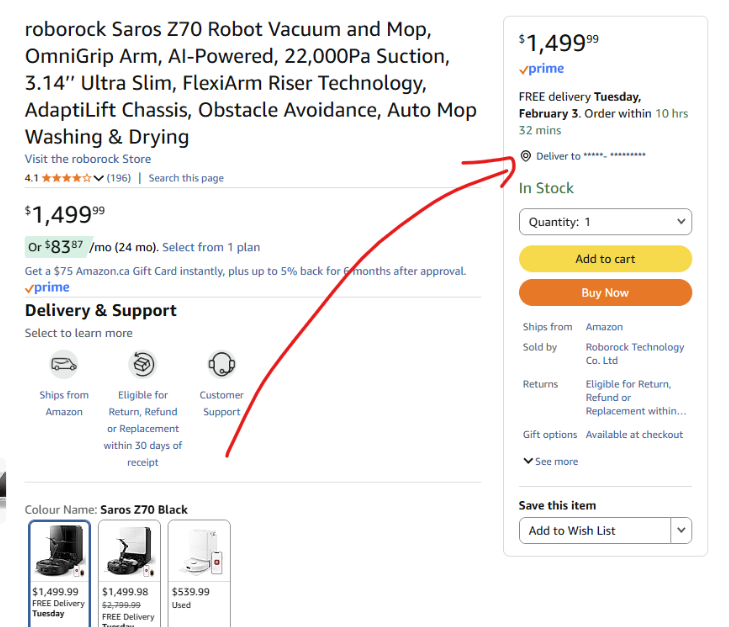
- To define your default address, change it on your Amazon account
- If it is still not being selected as default, open any product on amazon and click on the link showed on the picture below to chose your location
¶ Missing Pre-Release Address configuration
- Ultraviner requires that you have selected your default pre-release address to order the pre-release products that do not have checkout. To define it, go into Settings > Behavior Settings > Address for Pre-Release products
¶ Slow business account, or Default Address error on business account
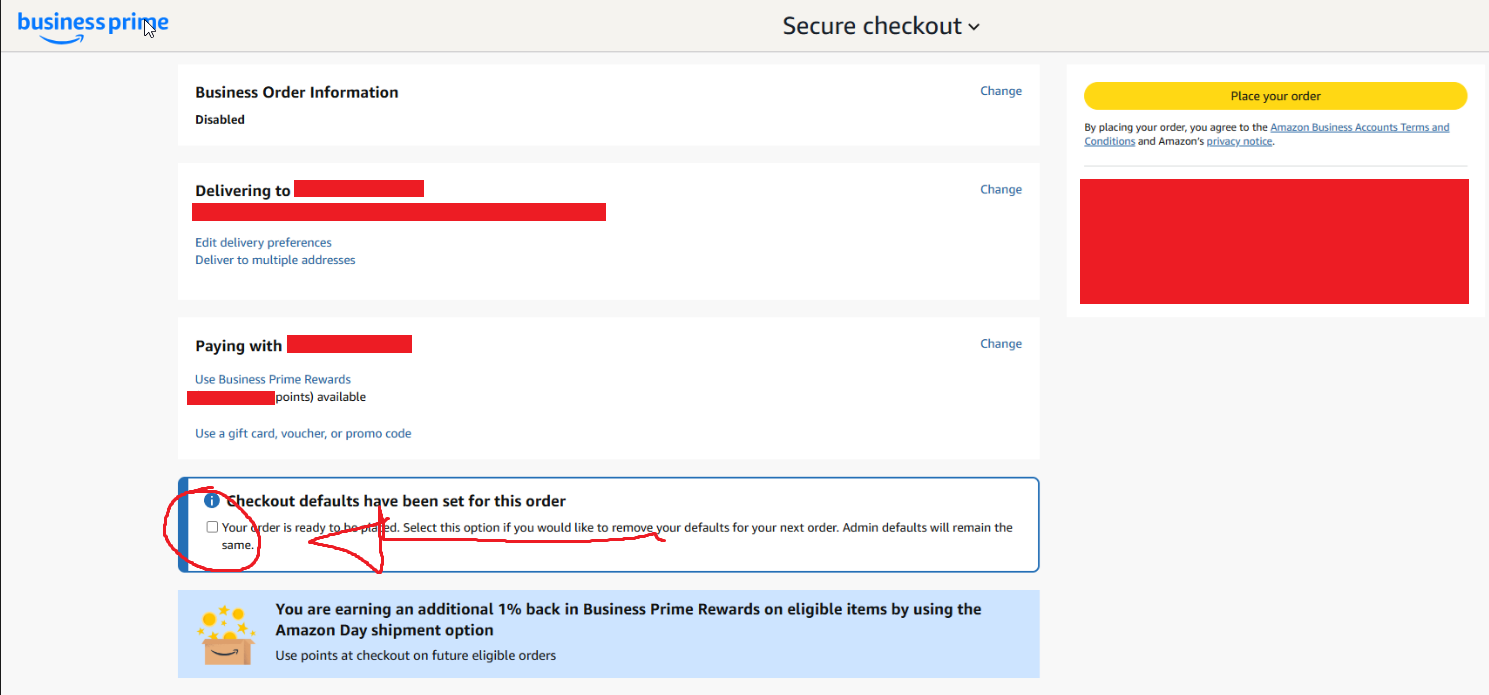
- If your business account is showing an extra page, on the bottom of the checkout page check the box "Use the selected group, shipping address, and payment method as my checkout defaults."
- Order a product on regular amazon website and check the box below to save your settings