With Rocket order you can order a product with one click (or a double click) straight from the product tile on your dashboard or in the sidebar view. You won't see the product details before ordering, so use it when you already know you want the item.
Next to the rocket you can also turn on a cart button. It orders the same way, but opens the regular checkout so you finish the order yourself.
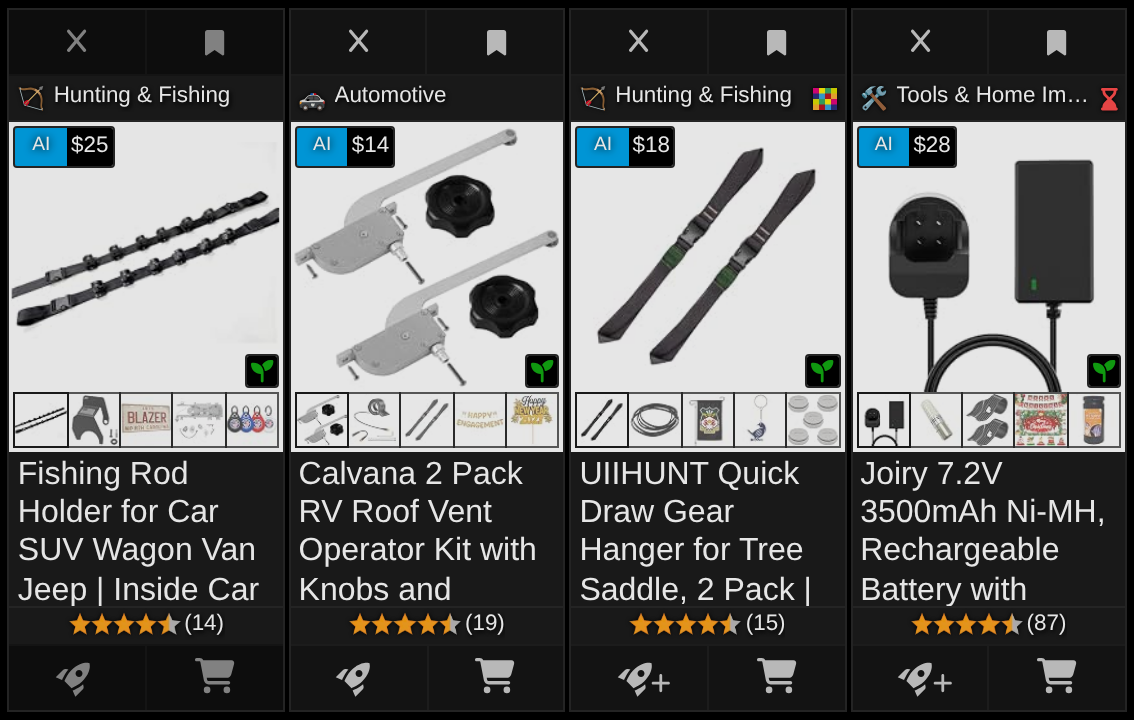
| Button | What it does |
|---|---|
| 🚀 Rocket | Orders the product with Auto Checkout. Ultraviner completes the purchase for you. |
| 🚀+ Rocket with a plus | The product may have variations. Rocket order picks the variation that matches your variation preferences, or the first one available. |
| 🛒 Cart | Orders the product without Auto Checkout. The checkout opens and you place the order yourself. |
Rocket order makes it easier to order something by mistake. Do not routinely cancel orders: it is a known reason for being removed from Vine.
¶ Turn it on
Each queue has its own buttons. Click the ⚙️ on the queue's title bar and turn on:
- Rocket Order Shortcut: adds the rocket button.
- Checkout Shortcut: adds the cart button.

To turn them on for new queues, use Settings > Behavior > Default Queue Layout. For the product sidebar, use Settings > Behavior > Modal Sidebar Layout.
The rocket needs Auto Checkout. While Settings > Behavior > Checkout > Auto Checkout is off, the Rocket Order Shortcut is greyed out and the rocket is not shown. The cart button still works.
¶ Double click to order
To prevent misclicks, both buttons ask for a second click by default. The first click changes the icon (the rocket takes off, the cart shows a check mark) and the second click places the order. You can change this in Settings > Behavior > Product Tiles:
- Double Click to Order with Rocket
- Double Click to Order with Checkout
¶ Button size
Change the size of both buttons in Settings > Behavior > Product Tiles > Order Buttons Size.
¶ Good to know
- If the product is hidden, Ultraviner asks you to confirm before ordering it.
- The cart button is not shown on Pre-Release products.
- RFY products can't be ordered from the Bookmark or Explore queues.
- Orders that are not Pre-Release ship to the default address on your Amazon account. See Settings > Behavior > Address.
- To stop a rocket order while the checkout is running, press Backspace (the Cancel Rocket Order key binding).
See also: Variations · Auto checkout · Common order errors