With Multiple Queues turned on (Settings > Behavior > Dashboard), every queue can be a floating window: you can move it anywhere on the dashboard, resize it, snap it into place, or even open it in its own browser window.
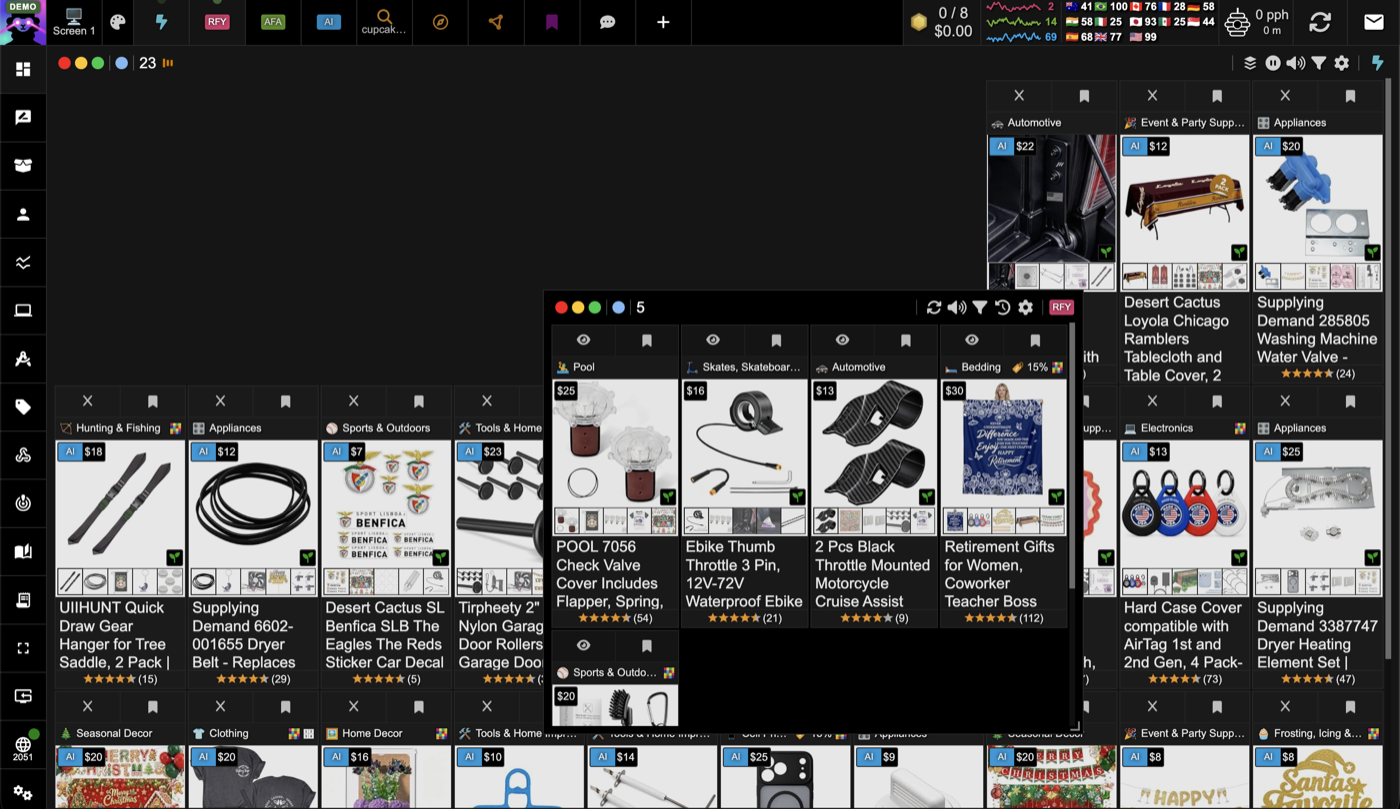
¶ Turning a queue into a floating window
- Desktop: drag a queue out of the columns by its top bar.
- Double click or double tap the queue's top bar (its name) to float it, and again to dock it back into the columns.
- Queue bar: drag a queue's toggle from the queue bar onto the dashboard. On touch screens, hold the toggle until the buttons shake, then drag it.
- Queue Placement: in the queue's settings, set Queue Placement to Floating.
To bring a floating queue in front of the others, turn its toggle on in the queue bar. The order the windows are stacked in is remembered, and saved with the screen like their positions.
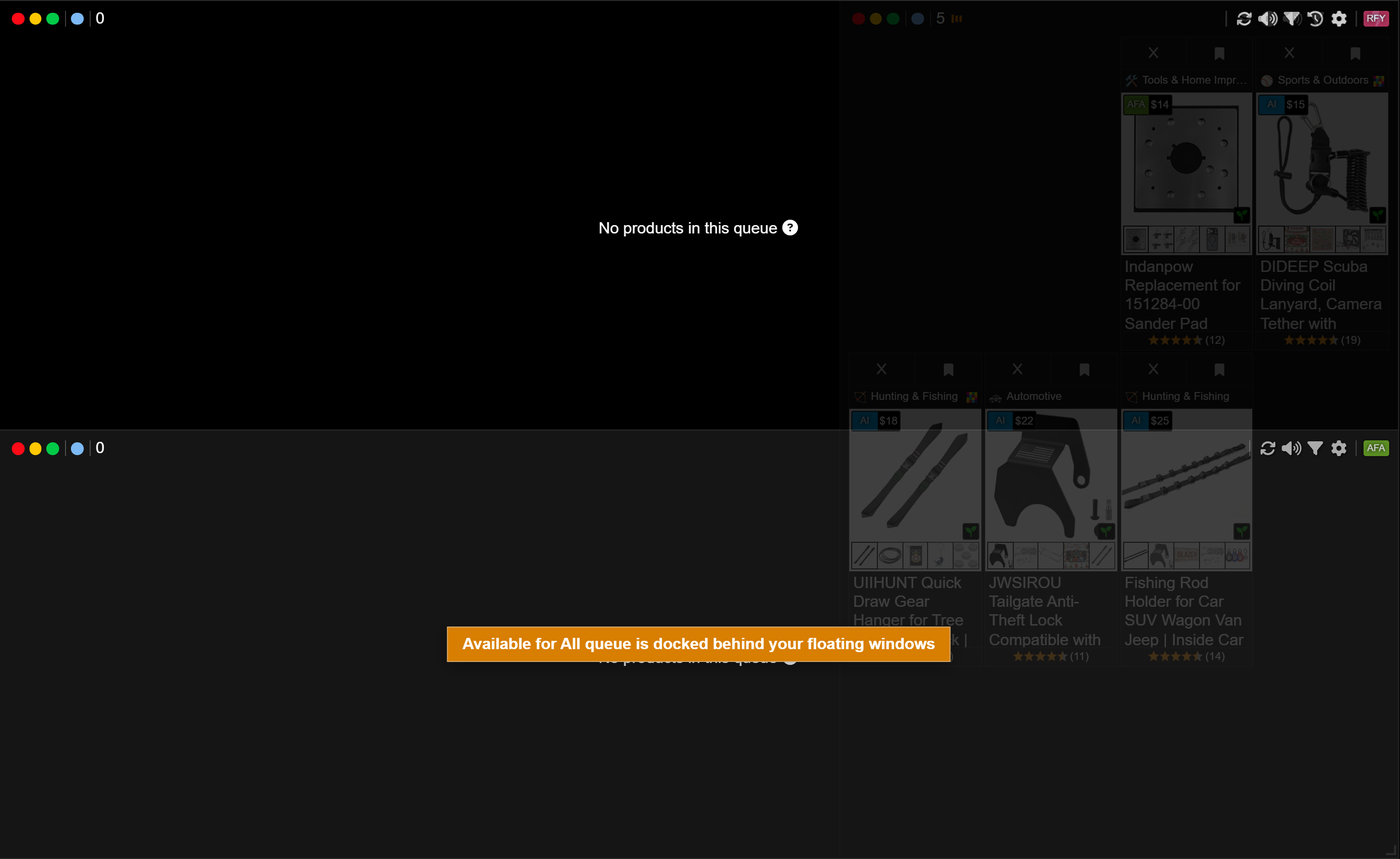
If you turn on a queue that docks in the columns behind your floating windows, the windows covering it fade for a moment and a label says which queue is behind them, for example "Available for All queue is docked behind your floating windows". They come back on their own after a couple of seconds, or as soon as your pointer is on one.
¶ Moving and resizing
- Drag a floating queue by its top bar. Any button on the top bar works as a handle too, which helps with queues stuck in a corner. A normal click or tap still uses the button.
- Resize it from its edges and corners. On touch screens the edge and corner handles are bigger, so they're easy to grab with a finger.
- Queues snapped next to each other or stacked resize together: drag the shared edge and one grows while the other shrinks.
¶ Snapping
Drag a floating queue and pause over a spot to snap it there:
| Drop it on | It becomes |
|---|---|
| A corner of the screen | That quarter of the screen |
| The left or right edge | That half of the screen |
| The top or bottom edge | The top or bottom half |
| An empty part of the dashboard | Fills that empty space (shown in the warning color, and not snapping, when it's too small) |
| Another floating queue | Takes that queue's exact place and size |
Dragging to an edge also shows the snap layouts panel, with more ways to split the screen. Spots that other queues already mostly cover are skipped.
¶ Window buttons
Queues have window buttons on their top bar: minimize, maximize and close. On Mac and iPad they are traffic lights on the left, with a fourth blue light for Queue Placement.
A minimized queue keeps running in the background.
¶ Queues in their own window (desktop)
Drag a queue's toggle outside the browser window, or use Open in a new window, to open that queue in a separate window, for example on a second monitor. Dragging a toggle from another window's queue bar moves the queue to the screen you drop it on.
¶ Related
- Screens: each screen keeps its own queues and layout.
- Design mode
- Queue